Installation & Getting Started
This guide will help you complete the installation and initial setup of Carry Code.
System Requirements
Section titled “System Requirements”| Operating System | Supported Architectures |
|---|---|
| macOS | ARM64 (Apple Silicon), x64 (Intel) |
| Linux | x64, ARM64, musl |
| Windows | x64 (PowerShell) |
One-Line Installation
Section titled “One-Line Installation”macOS / Linux
Section titled “macOS / Linux”Open your terminal and copy-paste the following command:
curl -fsSL https://carrycode.ai/install.sh | sudo shWindows
Section titled “Windows”Open PowerShell (right-click Start menu → Windows PowerShell) and copy-paste:
irm https://carrycode.ai/install.ps1 | iexThe installation script will automatically:
- Detect your operating system and architecture
- Download the corresponding binary
- Verify file integrity
- Install to
/usr/local/bin(Linux/macOS) or current directory (Windows)
Verify Installation
Section titled “Verify Installation”After installation, run this command in your terminal:
carry --helpIf you see the help information, the installation was successful!
Carry Code - Your AI Coding Agent
Usage:  carry [options]           Start interactive mode  carry --once "prompt"    Single execution mode  carry --help             Show help information
First Launch
Section titled “First Launch”Start Carry Code
Section titled “Start Carry Code”Run this command in your terminal:
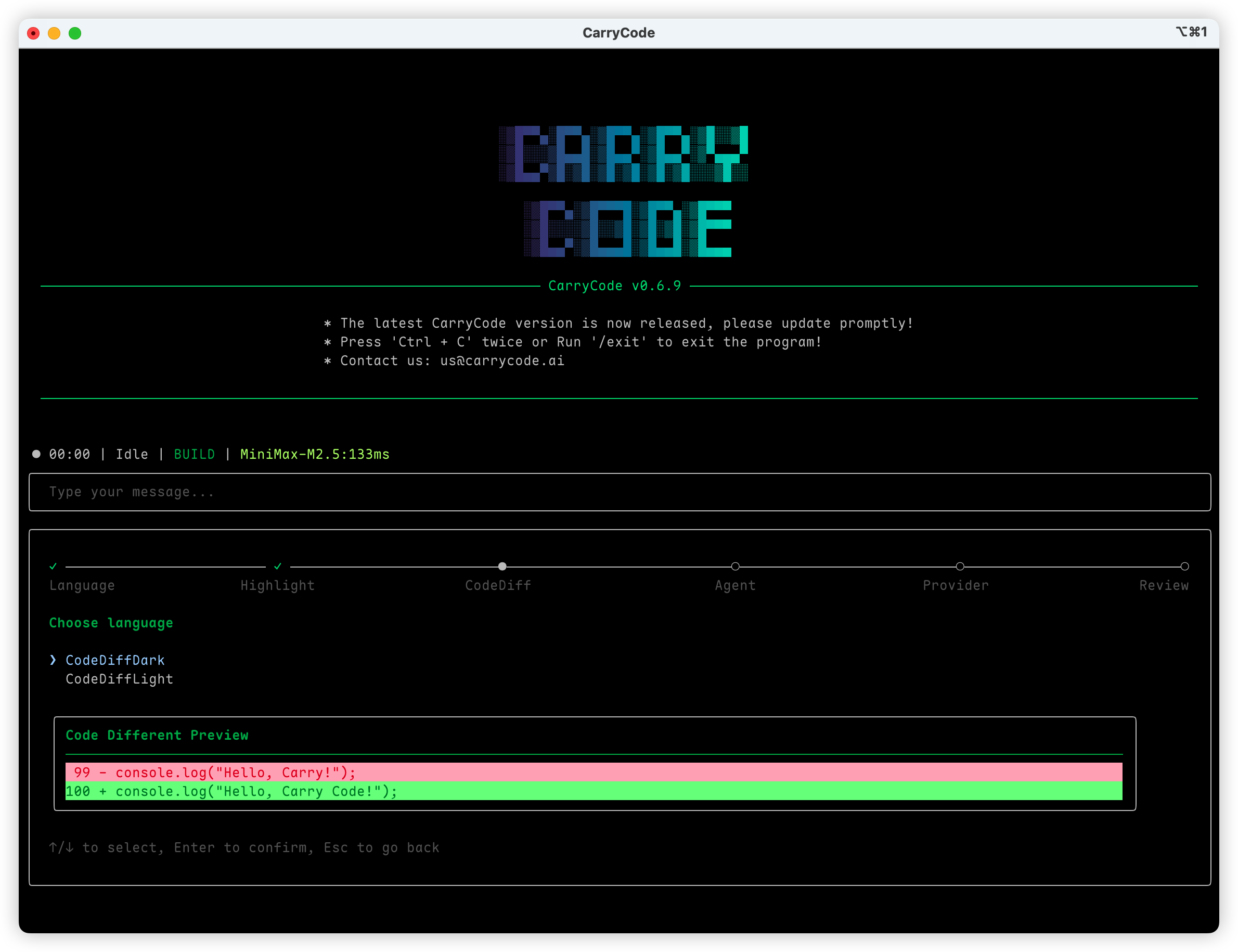
carrySetup Wizard
Section titled “Setup Wizard”On first launch, a setup wizard will guide you through:
- Select Language - Choose “中文” or “English”
- Select Theme - Light or dark theme
- Configure AI Model - Choose a provider and enter your API Key
What is an API Key?
Section titled “What is an API Key?”An API key is like a key that allows you to use AI services. Most providers offer free trial credits.
Recommended AI Providers
Section titled “Recommended AI Providers”| Provider | Features | Why Recommended |
|---|---|---|
| DeepSeek | High cost-performance | Direct access from China, affordable |
| OpenAI | GPT series | Comprehensive capabilities, industry-leading |
| Anthropic | Claude series | Strong programming capabilities |
| Alibaba Cloud | Tongyi Qianwen | Stable, reliable domestic service |
How to Get an API Key?
Section titled “How to Get an API Key?”DeepSeek (Recommended for China users):
- Visit https://platform.deepseek.com
- Register an account
- Go to “API Keys” page
- Click “Create API Key”
- Copy the key
OpenAI:
- Visit https://platform.openai.com
- Register and log in
- Go to “API Keys” page
- Create a new key
Other providers: Similar process - register and find “API Keys” in settings.
VSCode Plugin (Optional)
Section titled “VSCode Plugin (Optional)”If you use VSCode, you can also install the Carry Code plugin for a better experience:
- Open VSCode
- Click “Extensions” in the sidebar
- Search for “carrycode”
- Click Install
Troubleshooting
Section titled “Troubleshooting”Q: Installation failed?
Section titled “Q: Installation failed?”Solutions:
- Check network connection
- Confirm your system is supported
- Try manual download: visit https://carrycode.ai/releases
Q: Permission denied?
Section titled “Q: Permission denied?”Solutions:
# Linux/macOSsudo sh install.sh
# WindowsRun PowerShell as administrator
Q: How to update to the latest version?
Section titled “Q: How to update to the latest version?”In Carry Code, enter:
/updateOr run the installation script again:
curl -fsSL https://carrycode.ai/install.sh | sudo shNext Steps
Section titled “Next Steps”- Quick Start - Start your first conversation
- Basic Usage - Learn common use cases